
Manual data entry and messy .csv conversions are the biggest bottlenecks in catch-up and clean-up work. Whether you are onboarding a new client with months of historical data or managing a "disconnected" client who cannot connect their bank feed, Botkeeper Statement Automation bridges the gap.
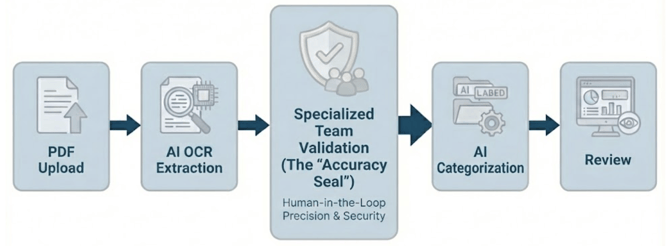
This feature allows you or your client to upload PDF statements directly into Botkeeper. Our AI extracts and categorizes the transactions. Any low confidence transactions will be left for review on the Needs Review tab in Transaction Manager. We'll also auto-reconcile the account at the same time.
*To ensure accuracy, a specialized data validation team verifies the extracted bank statement data when the AI is not high confidence.
The Set Up
1. Choose bank/credit card accounts
To choose which bank or credit card accounts will follow the Statement Automation flow, navigate to Transaction Manager → Configurations → Additional Automation Settings. In the Statement Automation section, select the bank and/or credit card accounts you want to include only the accounts selected here will be automated using this method.
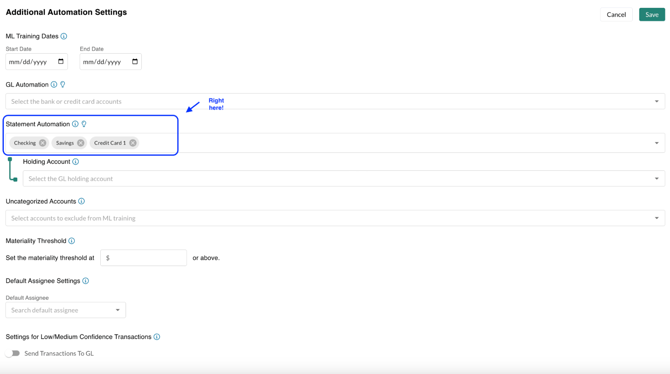
2. Choose a holding account
Once you select at least one bank or credit card account, a new field will appear prompting you to choose a holding account. Select, or create, an expense account in the Chart of Accounts where transactions will temporarily post while the AI processes them (for example, Uncategorized Expense, Ask My Accountant, or a custom account like Ask AI).
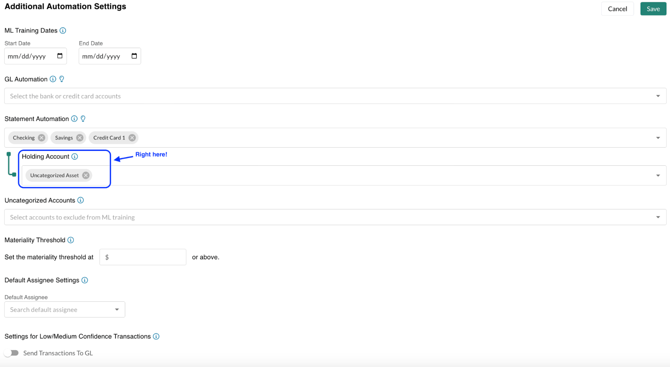
The Workflow
Now that the pipes are connected, here is how you process your catch-up work.
-
Upload Statements:
-
Go to the Documents module.
-
Open the "Bank Statements" folder.
-
Select the specific Account Folder and then the Year Folder.
-
Click Add New → Upload and drop your PDF statements.
-
-
AI Extraction & Human Validation:
-
Botkeeper’s OCR engine extracts the data immediately. This includes the date, description, amount and type of each transaction.
-
Data Accuracy: Our specialized, security-vetted data validation team manually reviews the extracted bank statement for you when the AI is not high confidence, to ensure 100% accuracy.
-
-
Final Review: Within 24 hours, transactions will appear in the Needs Review tab in Transaction Manager. From there, you can quickly review the suggested categorizations and mark them as Reviewed.
Pro tip: For even more efficiency, take advantage of bulk actions, like bulk editing or bulk marking transactions as reviewed, to move through groups of transactions at once.
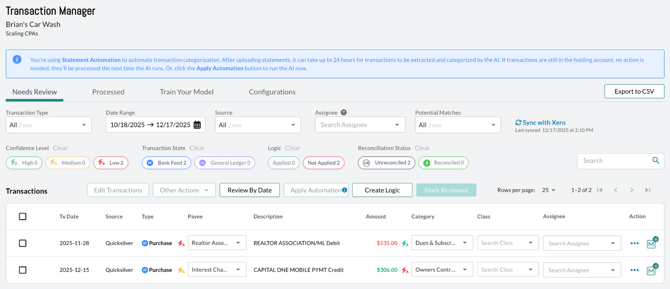
Reviewing imported statement transactions in the Needs Review tab of Transaction Manager
How do I perform a write-up/catch-up/clean-up using Infinite with no historical transactions?
-
Once you have your accounts set up per the steps above, upload a couple of statements (1-2 statements per account, not all)
-
AI will process them and surface the transactions on the Needs Review tab in Transaction Manager within 24 hours (usually less)
-
Update the categorization for all transactions on the Needs Review tab
- Mark transactions reviewed (any that weren't marked reviewed automatically by the logic)
- [Behind the Scenes] Next, the AI will train on the categorized/reviewed transactions
- Upload the remaining statements that need to be processed
- Within 24 hours, the transactions will be in Transaction Manager. Any transactions the AI is not high confidence about will be on the Needs Review tab for you to review
- Update and mark reviewed all transactions on Needs Review until there are none remaining
🎉That's it! Your write-up is complete
💡 Tip: Leverage our Train Your Model feature and create logic to categorize the transactions. Recommended when there are lots of similar transactions to update - faster.
- After all the logic has been added, you can apply it to transactions on Needs Review by clicking the Apply Automation button
How do I perform a write-up/catch-up/clean-up using Infinite WITH historical transactions?
💡 Tip: If there is a certain period of transactions you would prefer to have the model train on instead of a bunch of old junk, adjust the model training start and end date on the Configurations tab in Transaction Manager!
Summary: DIY vs. Botkeeper
| Feature | DIY OCR Tools | Botkeeper Statement Automation |
| Data Extraction |
AI Only (Requires manual cleanup) |
AI + Human Validation Team |
| Accuracy |
85-90% (Prone to typos) |
100% Verified Accuracy |
| GL Integration |
Manual .CSV Import |
Automatic Sync via GL Automation |
| Cleanup Speed |
Slow (One file at a time) |
Bulk (Upload years of data at once) |
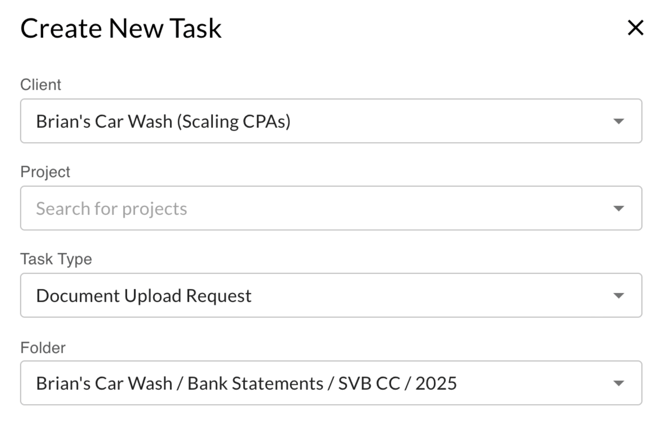
Pro Tip: Use a Document Task to request statements from your clients on a recurring basis. When they upload to the task, the file automatically lands in the "Bank Statements" folder, triggering the automation without you lifting a finger.
Why Botkeeper is Different
Statement Automation brings previously unsupported client workflows into Botkeeper’s core automation engine. It uses the same logic, intelligence, and review tools already in place, now applied to PDF statement data with no reformatting or external tools required.
Comparative Feature Table
| Feature | Botkeeper | AutoEntry / Dext | QBO / Xero | Booke.ai / Keeper |
| Accepts PDF bank/CC statements |
✅ Yes |
✅ Yes |
⚠️ Limited (manual entry) |
❌ No |
| OCR extraction |
✅ Yes |
✅ Yes |
❌ No |
❌ No |
| AI/ML categorization |
✅ Yes |
❌ No |
❌ No |
⚠️ Partial (requires input) |
| Posts to GL |
✅ Yes |
❌ No |
✅ Manual Only |
❌ No |
| Surfaces in unified review workflow |
✅ Yes |
❌ No |
❌ No |
❌ No |
| Custom models per firm |
✅ Yes |
❌ No |
❌ No |
⚠️ Partial |
| No formatting/reprocessing needed |
✅ Yes |
❌ No |
❌ No |
❌ No |
| Built for disconnected clients |
✅ Yes |
⚠️ Partial |
⚠️ Partial |
❌ No |